Persons in OSIRIS
OSIRIS can be used not only to keep an overview of all activities in the institute, but also to manage employees and organise departments.
Under People you can view the entire staff registered in OSIRIS and search through them using various tools. You can influence which keywords or expertise you can be found with in OSIRIS by editing your profile accordingly.
Filter by organisational unit
To the right of the listed profiles, you will find the option to search the college by organisational units. If you click on an available organisational unit, all profiles in OSIRIS that belong to this unit will be displayed.

Application of the organisational unit filter
Filter by keywords
If your administration has defined keywords, you can use these to search profiles. However, users must also use them in their profile. You have two options for searching with keywords: To the right of the profiles, you will find another one for the keywords under the organisational unit filter. You can also find a button for keywords next to the search bar above the profiles. On this page you will find all existing keywords with the people who have entered them in their profile.
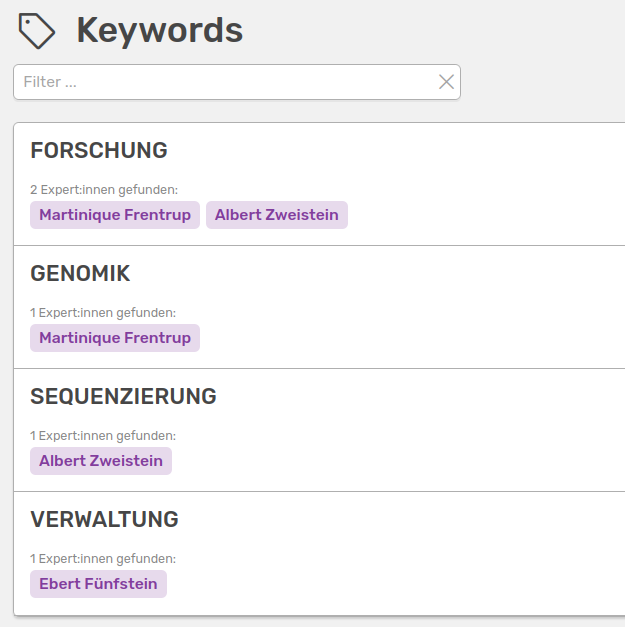
Search for people using keywords
Clicking on a name will take you to the person's profile. If you are missing keywords in OSIRIS, please contact your administrator.
Filter by expertise
There is no predefined list of expertise provided by the administration, each person can add a new expertise. If you click on the Expertise button, you will find a list of all terms used by users and the corresponding names. Here, too, you can click on the name to access the corresponding profile. You can also search the expertise for a specific term.
Advanced search
As with the activities, you can also use an advanced search to filter the people. You can use various search criteria such as first name/last name, room or keywords with the operators AND/OR to search the college.

The advanced people search with two search criteria
Export
You can export a list of the college in Excel format by clicking on the Excel button to the right of the keywords button. You can reduce the list to be exported using the filters available on the right.