Events in OSIRIS
OSIRIS can be used for the centralised management of upcoming conferences, congresses or other events. Events are a function that must be activated by the administration. If you cannot find a tab for events in the menu on the left and/or do not have the rights to add new events, please contact your administration.
Create new event
To create a new event, you can either use the drop-down menu at the top left for Add activity or select the events page on the left in the menu and click on  Add event.
A form will open in which you must enter the following information:
- Short title of the event
- Type: You can choose between Local, National or International. The selection can be customised via Vocabulary
- Date of the event
- Location of the event

Form to add an event in OSIRIS
You can also enter further details here, such as a longer title or a URL for the event.
If Research areas or Keywords are activated in your instance, you can link your event to existing ones in the lower section of the form.

If activated, you can also link your event to research areas or keywords

Your created event looks like this
As you can see, you can of course edit or delete your event. To the right of the display shown here is the description you have entered or the longer title of the event.
Participation in events
All OSIRIS users are shown the events entered on the right-hand side of the start page. By clicking on the Interested and Participant buttons, users can record their participation or interest in the event.
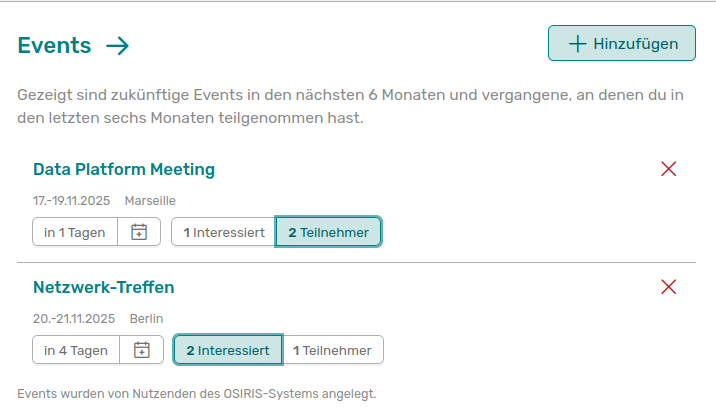
This is how the events entered in OSIRIS are displayed on the start page of each user
The number on the buttons shows you how many users have already registered their participation or interest. If you go to the event entry, you will also see the names of the people.

On the event page, you can see which people from your organisation are still interested in or even attending the event
Link an event to an activity
At the bottom of the event page, you have the option of linking the event to activities.

Here you can add an activity to the event
By clicking on Add contribution you will be forwarded directly to the Add activity page. The activity type lecture is preselected here and already filled in appropriately for the event.
If the administrators have configured the forms accordingly, you can also select the event to which the activity should be linked when creating an activity. In this case, the link is created automatically and you no longer need to add it manually.
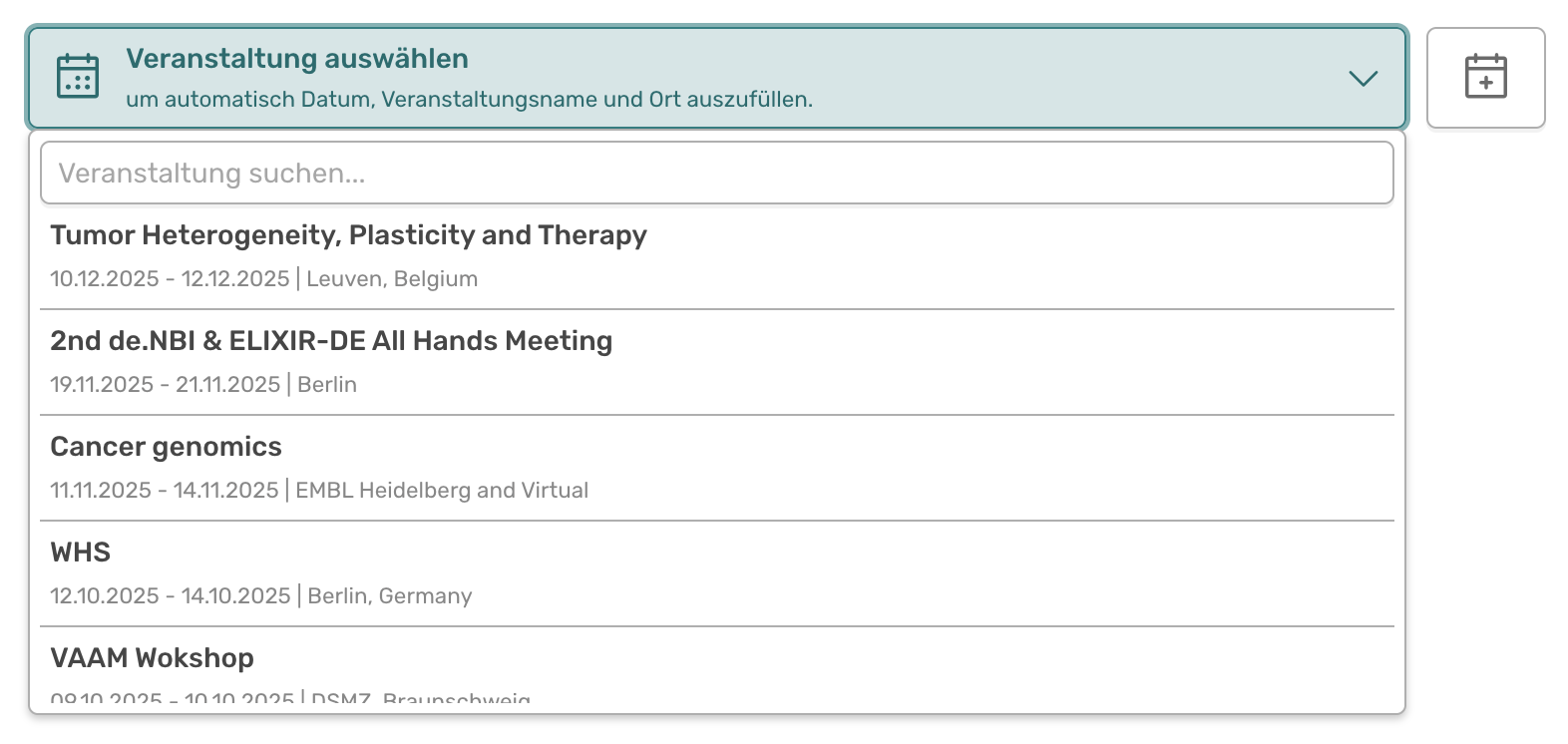
With the event selection, you can create the link between the event and the activity when you create the activity. You can search through all events entered in OSIRIS and select the appropriate one. You can also create a new event using the button at the top right if the appropriate event is not yet entered in OSIRIS. It will then be automatically selected and linked to the activity.
When linking to the event, some of the activity data is also automatically pre-filled. For example, the name of the event and the location are filled in, and the date of the activity is automatically set to the date of the event. This saves you a lot of time and means you no longer have to enter this data manually. Of course, you can still adjust the pre-filled data if, for example, the lecture does not take place on the same day as the event.
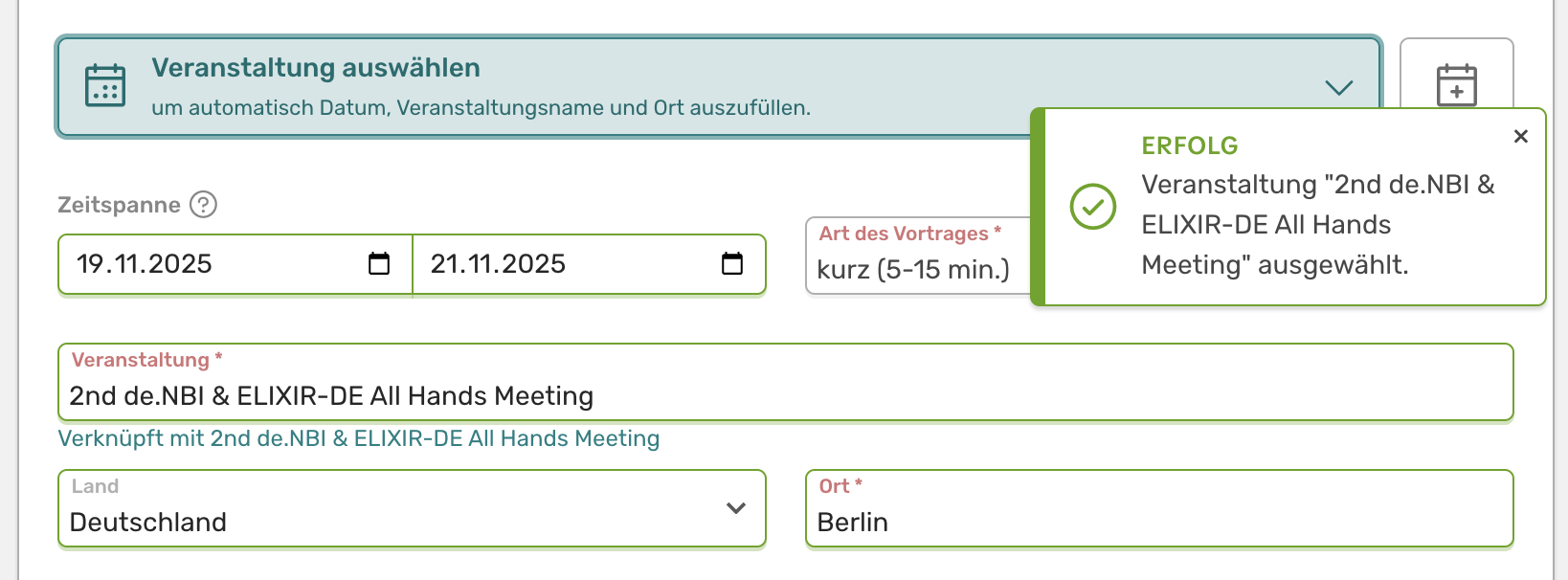
When you select an event while creating an activity, the time period, name of the event, location, and country are automatically pre-filled. The relevant fields are highlighted in green for a few seconds and a message appears indicating that the data has been transferred from the event. //