Advanced functions
Upload files
You can store important documents for each activity in OSIRIS. To do this, go to the expanded view of the activity and click on Upload file to access the following widget:
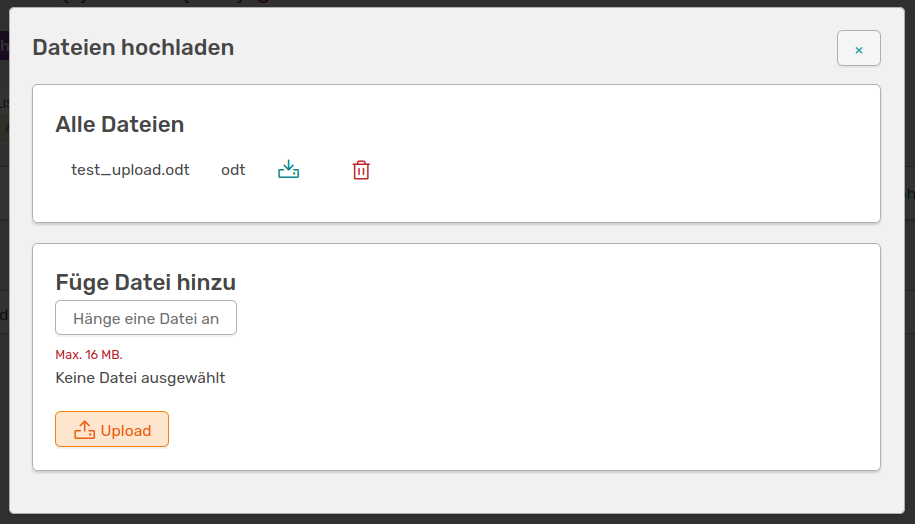
Widget for uploading a file for an activity and for downloading and deleting existing files
If files have already been added to this activity, the button will be displayed as files with the number of documents stored. If you click on the button, the existing files are displayed. On the right is a button for uploading further files, which takes you to the widget.
All uploaded documents are displayed under All files, which you can also download and delete here.
Under Add files you can upload new documents by clicking on Attach a file. These must not exceed a maximum size of 16 MB and should be in a standard format if possible. Good examples are PDF (preferred), PPTX, XLSX, DOCX. Once you have selected the file, all you have to do is click on Upload to upload it.
Editor comments
When an activity is edited, OSIRIS offers the possibility to leave a comment regarding the changes to all co-authors.

Possibility to comment on a change to the activity for the other authors
This field only appears if you are editing an existing activity. If you think that your changes are too minimal to require review by the co-authors, you can tick the appropriate box at the bottom.
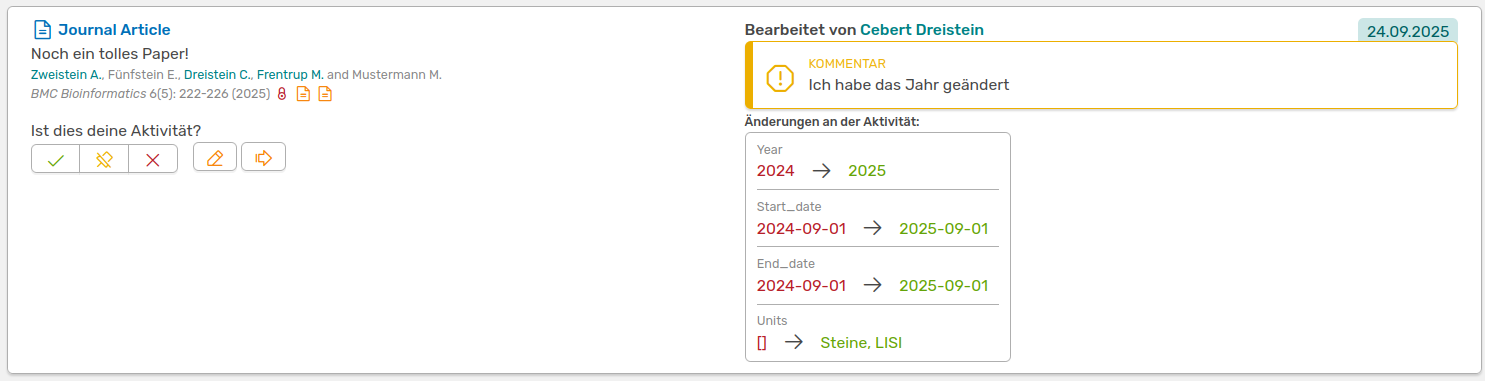
This way, your co-authors will see the change with your comment
When your co-authors are notified, they will receive a message showing your changes and your comment. In this message, they can confirm whether the assignment is correct, whether they were not yet affiliated when the activity took place, or even reject the authorship. With the pencil button you can edit the activity yourself, the arrow button leads to the extended view of the activity.
Copy activity
OSIRIS offers you the option of creating copies for certain types of activities, allowing you to quickly create recurring activities with slight changes (e.g. date or event). Copying is possible for all activity types except publications.

Button in the extended activity view to create a copy of the activity
This function is particularly useful if, for example, you are presenting talks or posters at several conferences. This way, you only have to adjust the date and/or location and do not have to create the activity from scratch.