Create content
OSIRIS offers you the opportunity to document all your scientific activities and link them to research areas, organisational units or projects. On your profile page you will find a button on the left which will take you directly to the Add activity page. The button is also displayed in orange in the menu area on the left.

The Add activity page with the listed activity categories in OSIRIS
You have various options for adding an activity in OSIRIS, which are explained below.
Add content via search in Pubmed
You can add publications via a search in Pubmed. To do this, you can use various search parameters on the page.
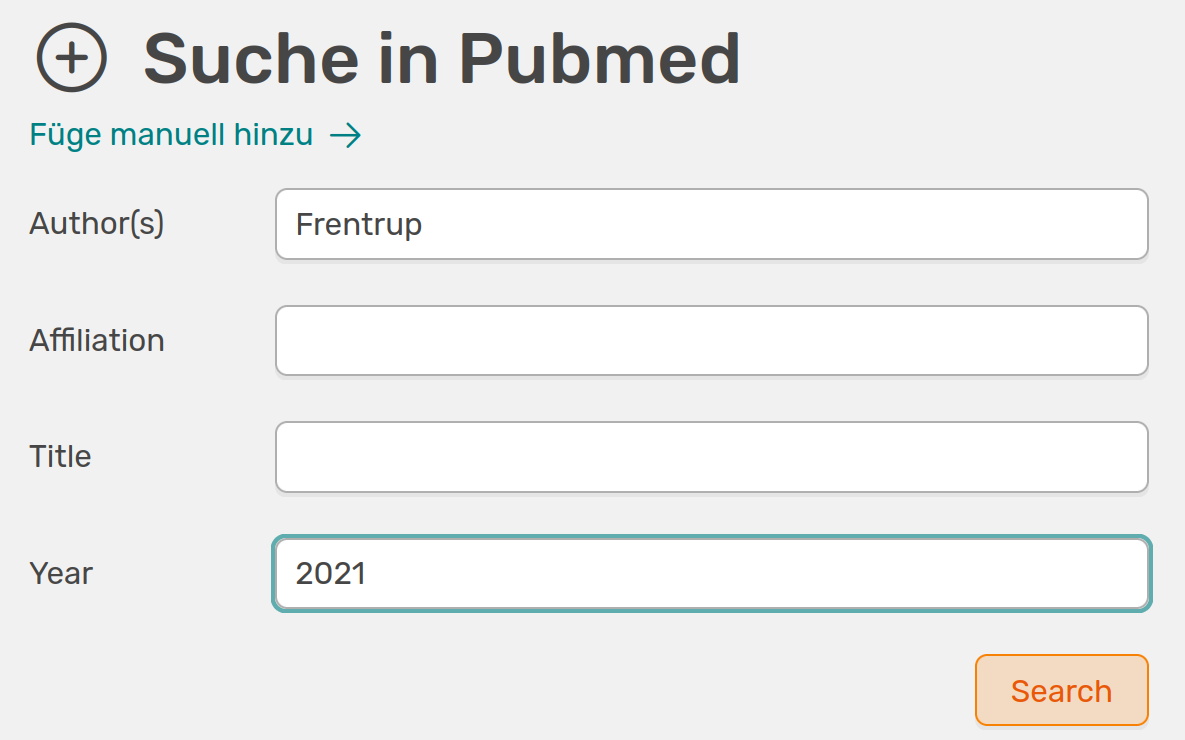
Search parameters to search Pubmed for publications
When you perform the search, all publications found will be listed. You can transfer them to the Add activities form using the  . Please check all the transferred values again here. Don't forget to mark the affiliated persons by double-clicking on them.
If there are entries in the search that are already stored in OSIRIS, this is indicated by a red border and the Duplicate flag.
Add content via DOI
If you have a DOI (Digital Object Identifier) for your publication, you can enter it directly in the search bar. OSIRIS will then fill in the form automatically. Again, please check the values and tick the affiliated authors.
If the associated publication is already stored in OSIRIS, you will also be shown a warning regarding a duplicate.
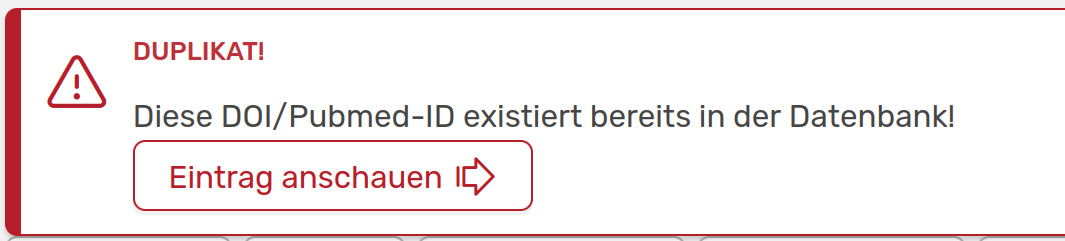
Warning about a duplicate in the DOI search
Add content manually
You can of course also enter all your activities manually in OSIRIS. Several activity categories with different activity types are available for this purpose. Once you have selected the appropriate type of activity, a form will appear for you to complete. Mandatory fields are always marked with a red star.
The forms depend on the activity you have selected and can be customised by the administration.
Format title

Field to format the title
Make sure that the spelling and formatting of the title match the original work. The following formatting is supported: italics, underline, superscript and subscript. There are also shortcuts for the most common Greek special characters.
Add authors
Your name is automatically added as an affiliate in the author list when you create a new activity.

Author field to add more names
You can add further names using the Add author field. If these names are stored in OSIRIS, they will be displayed in a drop-down menu. If you have added several names, you can change the order using drag & drop. It is also important to mark all affiliated authors accordingly by double-clicking on them. Affiliated authors are marked and the abbreviation of the institute appears in front of the name. If you want to remove authors again, simply click on the red cross behind the name.
 If authors are employees of your institute but were not at the time of the activity, they must not be marked accordingly.
Link research areas
The available research areas are displayed at the end of the form (if this function is activated). With one click, you can link your activity to one or more areas. This can be adjusted afterwards. The link will be displayed accordingly in the existing activity.

Activity with the linked research areas
Link organisational units
If the activity falls within the period in which you are assigned to an organisational unit, it is automatically linked to this unit. The link is displayed at the bottom of the extended activity view.

Linking the activity to an organisational unit
Add note
Under the research areas, you also have the option to leave a note for your co-authors and/or for the administration. This note will only be displayed in the created activity for the persons concerned.