Process of the workflow
Once you have set up your workflow and applied it to activities, the people concerned will be shown the number of activities that require an action from them under Reviews in the menu on the left.

The menu on the left shows you whether you are currently assigned activities in a workflow that you need to check
In our example, the first step has been assigned to the Scientist role, limited to activities from their own organisational unit. Accordingly, not all publications to be reviewed are displayed to the person for review, but only those that are assigned to the unit.

Display of the reviews
Under each activity, you can see the progress of the workflow based on the completed steps and the step to be carried out by the person. To release the entries, you can either confirm individually using the green tick on the right or select all and use Release selection in the lower area. If you click on the red cross to reject, you will be asked to leave a comment. The arrow takes you to the detailed view of the activity.
Reject an activity
If the person clicks on the red cross and leaves a comment, they have rejected the current step of the workflow. This is displayed on the one hand in the list of all activities via an icon below the quarterly information and on the other hand in the status bar in the extended activity view.


Display of the rejection in the list of all activities on the one hand and in the extended activity view on the other - the comment is also displayed here for the authors of the activity
In addition, all authors of this activity receive a warning message:

Warning of rejection with comment for the authors
Authors can reply directly to the comment here and return the step to the person responsible. However, they can also edit the activity and then return it to the process. The person again receives a message under Reviews and can release the activity or look at it again in detail. In the extended view of the activity, you can click on the status bar to see a detailed view of the process.

Page with the current status of the workflow and the option to confirm the assigned step. The comments submitted for this test step are also displayed here
If the person responsible now wants to approve the activity, they can do so directly here and all comments on this step are deleted. If the step is to be rejected again, the person will be asked to submit a comment again.
Releasing a step
The green tick releases the current step for this activity and the process moves on to the next step. The first step is marked with a green tick in the status bar.
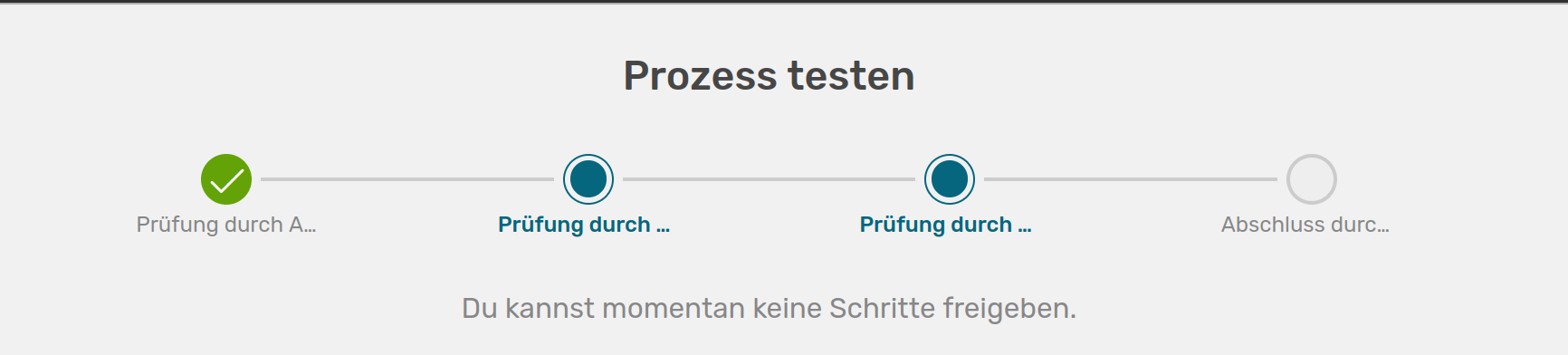
Display of the accepted step and marking of the next steps (blue)
As the next two steps have been given the same indexes, they run in parallel and are both marked here directly. As these steps have been assigned to a role other than Scientist, the person cannot approve any of the next steps. The persons with the respective roles now receive the same message for Reviews and can again reject or approve the activity.
Completion of the workflow
Once all steps have been confirmed, the activity is marked as released.


Display of an approved activity in the list of all activities and in the extended activity view
Reset or remove workflows
You can reset workflows for individual activities, for an entire category or for all activities in the workflow menu at any time.
For individual activities, click on the status bar in the expanded view. A red button with Reset workflow will be displayed there.
To perform the action for multiple activities, go to Content → Quality workflows in the admin area, where you will find Edit applied workflows in the lower area.

In this area, you can reset or remove workflows for all activities or selected categories
In the Action drop-down menu, you can choose between:
-
Reset all workflows to the first step: All affected activities are marked with a white circle in the list view and the status bar in the expanded view is reset
-
Remove all workflows**: The markers in the list view and the status bar in the expanded activity view are removed
In the Activity category drop-down menu, you can choose whether you want to perform the action for all activities or only for a specific category. If you click on Execute action, you will be asked for confirmation again before OSIRIS carries out this step.