Create a workflow
To create a new workflow, go to Content → Quality workflows in the admin menu. Click on  Add workflow to open a form in which you must give your workflow a unique ID and a name. Please note that the ID may only consist of lowercase letters, numbers and underscores or hyphens (e.g. publication-approval). The Name of the workflow can be freely chosen, but as it is displayed in the progress bars, it should be as short and concise as possible. To make further configurations, you must first save. This opens a form in which you can add steps to your workflow.
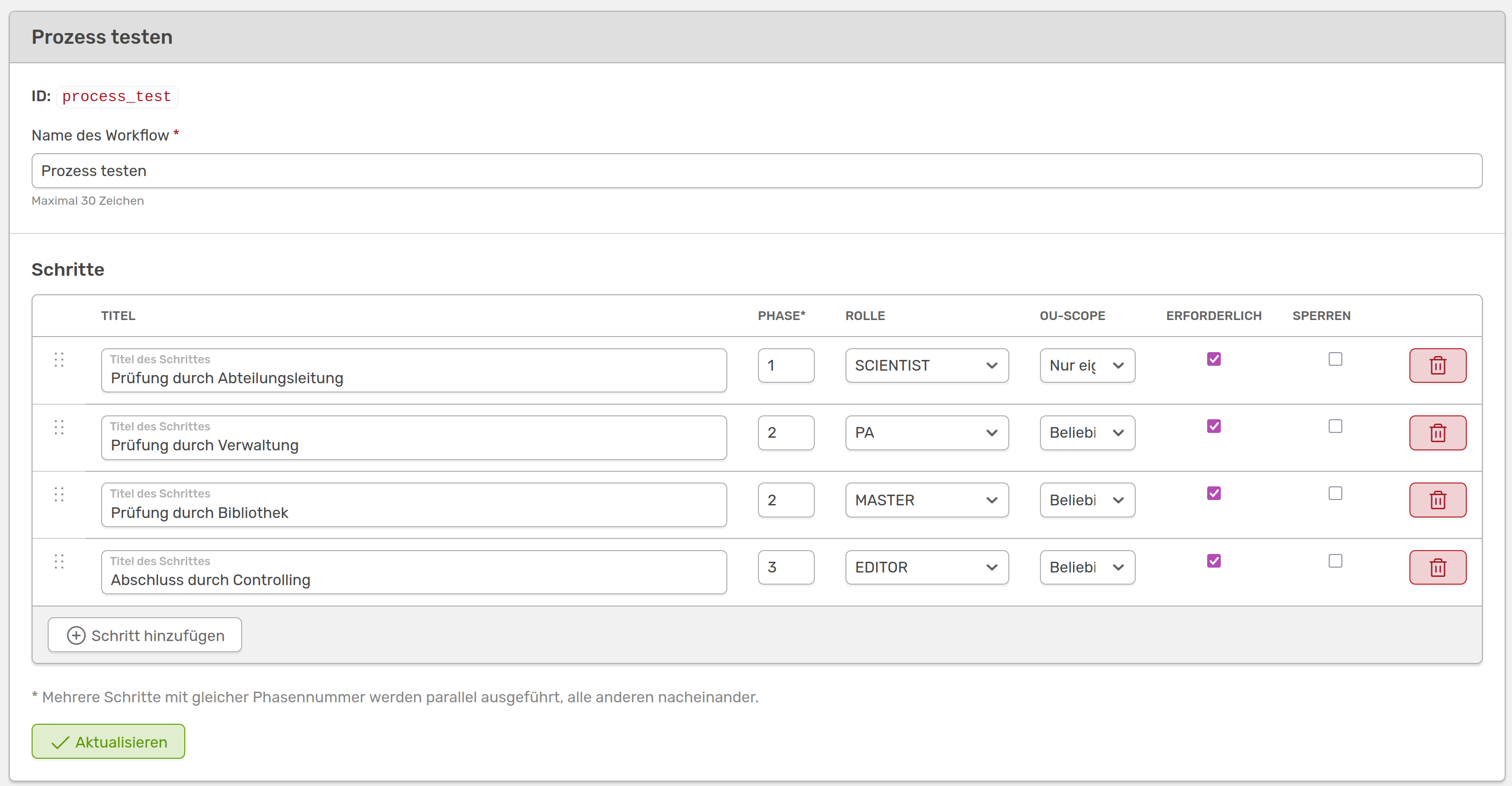
Form to create a workflow
You can use Add step to add as many steps as you like to your workflow. The following information is required:
- Title: Name of the check step (e.g. "Check by head of department")
- Phase:** Several steps with the same index are executed in parallel. If all steps are to be carried out one after the other, assign ascending indices (1, 2, 3...)
- Role:** Which user role is authorised to process this step (e.g. Scientist, PA etc.)
- OU-Scope: Activate checkbox if the step may only be released internally in an organisational unit
- Required: Marks the step as mandatory in order to achieve verified status.
- Lock:** Optional - prevents further changes to the activity after this step has been completed
You can delete individual steps using the bin symbol on the right and change the order using drag & drop using the dots on the left.
Save your changes by clicking on Update.
In the example shown, the workflow would run like this:
- 1st step: People with the role Scientist in your organisational unit are asked to confirm the activity
- 2nd step: People with the role PA and with the role Master can confirm the activity in parallel. Only when both have confirmed does the next step take place. The roles do not have to belong to your organisational unit
- Step 3: People with the Editor** role are asked to confirm the activity, again without belonging to your organisational unit
Only when all roles have confirmed the activity does the status change to verified.